Sojourn
Android app that manages trip itineraries.
A trip consists of multiple days and
each day consists of multiple events.
The available events are:
- Flight
- Rental car
- Car suttle/ride share
- Train
- Lodging
- Activity
Sojourn maintains the trip info
in application storage on the
Android device.
This internal data can then
be saved to a JSON formatted
file that can then
be shared with other versions
(iPhone, Garmin watch)
of the Sojourn app.
Sojourn is licensed under the GPL V3.0.
The latest source tree is available
for browsing
here
and tarballs for the latest and older versions are located at the following links:
Main display
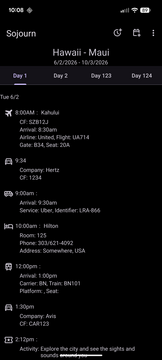
The startup screen shows
(from top to bottom):
- The action bar
- The title for the trip with first and last dates of the trip
- The first and last dates for the trip
- A horizontal day tab
- Events for the current day
Action bar
The bar contains icons that allow the user to
(action items without an icon show up after tapping
the 3-dots ( ) more icon in the action bar):
Title for the trip
The title for the trip (in this case Hawaii - Maui). Tapping on
this title brings up a popup that can change global information
about the trip:
- Where to - editable field that changes the name of the trip.
- Date format - drop down that allows the users to select
how dates are formated:
- M/d/yyyy - Month followed by day of month followed by year.
This is the default format.
- d/M/yyyy - Day of month followed by month followed by year.
- yyyy/M/d - Year followed by month followed by day of month.
Horizontal day tab for each day
A horizontal day tab where each day of the trip can be selected. Tapping
on a date brings up the events details page for that date.
Events details for the current day
Events for the currently selected day from the day tab. Swiping
left or right scrolls through the days of the trip.
Each event has at least one line with an icon
identifying the type of event,
the start time for the event,
and optionally some other info.
Following the first line there are
other optional lines giving more details
on the event.
Note that every field for
an event except the type
is optional,
it's OK to leave everything blank
(although you really should specify
the start time,
othewise all of the events
will bunch up at midnight).
Also note that every event has
a CF
(ConFirmation number)
that will only be displayed if
it is non-blank.
The events are:
 Flight
 Ride
Ride Rental
 Train
Train Lodging
 Activity
 New event
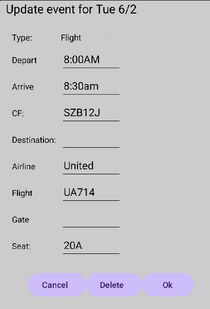
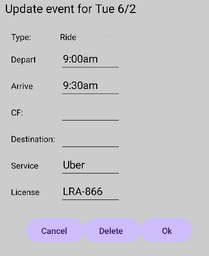
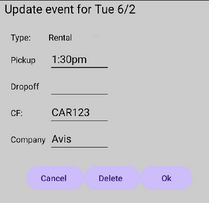
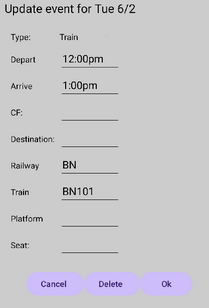
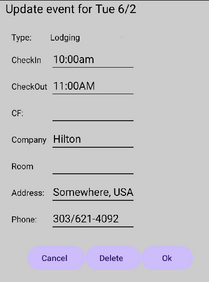
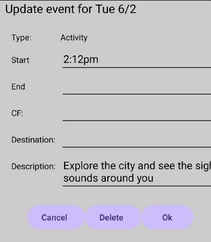
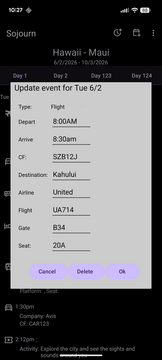
This popup creates or updates the events for a given day.
Note that the fields of the popup change depending upon
what type of event is being added
(or updated,
this same popup is used to update a
current event for a day).
Tapping on the Type field brings up
a drop down menu where you can select the
specific event type that is being changed.
The types are:
- Flight - plane trip
- Ride - ride share (think Uber or Lyft)
- Rental - rental car
- Train - traing trip
- Lodging - hotel or airbnb
- Activity - sight seeing activity
Hopefully the fields that are shown for a
given type of event make sense for that event.
Note that all events have 3 common fields:
- Type
- Depart, Pickup, Checkin, Start - the start time.
Events for a day are sorted based upon this field so you really should get
it right.
- CF - an optional confirmation number
 New day
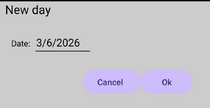
This popup create a new day for the trip.
The only field to change is Date,
the date of the new day.
Sojourn with suggest the day after the last
day in the current trip but it can be changed
to any date you want.
 Save to file
Tapping on this icon brings up a system selection page.
Use this page to select a location and name
(it is highly recommended that you use
the suffix .json for the file name,
check out the section
Open by default
for an explanation of why this is helpful)
where a
JSON copy of the current trip will be saved.
When you tap on the save button in
the system selection page the file will be
saved.
If you decide to cancel this operation just
use the system back button to back out of
the selection page.
 Load from file
Tapping on this icon brings up a system selection page.
Use this page to select a file that contains
a JSON representation of a trip.
Tapping on a file in the system selection page
will cause the data from that file to be loaded
into the Sojourn app.
If you decide to cancel this operation just
use the system back button to back out of
the selection page.
New trip
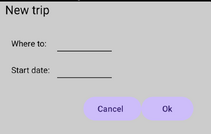
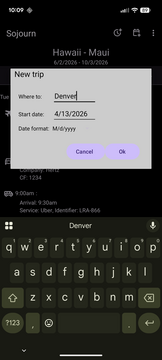
This popup creates a new trip.
The two fields on this popup are Where to,
the destination for the trip,
and Start date,
the start date of the trip.
The Where to field is required,
if left blank Sojourn will provide
a snarky ("Going somewhere?")
default name.
The Start date defaults to
the current date but that should be
changed to the actual date of the trip.
Send to smart watch
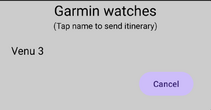
This popup sends the current trip to a
Garmin smart watch.
The popup will show a list of watches
that are currently connected to the
device that Sojourn is running on.
Tapping one of those device names
will send the trip info to that watch.
Open by default
Sojourn installs itself as a handler for
json files.
As such,
if you use a .json suffix when saving trips
then Sojourn will be one of the apps
that can open that file.
If you open up the file manager
(or a cloud storage app like Owncloud
or Google Drive
or Dropbox)
and tap on a JSON file then Sojourn
will be one of the apps that can be
used to automatically open that file.